
Table of Contents
Table of Contents
1Overview
Deploying Apache Kafka using Docker offers a streamlined way to manage and scale Kafka clusters. This guide covers the setup process, best practices, and common configurations for running Kafka on Docker using both Bitnami and Apache Kafka Docker images.
2Prerequisites
Before setting up Kafka on Docker, ensure you have:
-
Docker Engine installed on your system.
-
Docker Compose for managing multiple containers.
-
A basic understanding of Docker concepts (containers, images, volumes).
3Setting Up Kafka on Docker
3.1Using Bitnami Kafka Image
In this example, we will create an Apache Kafka client instance that will connect to the server instance that is running on the same docker network as the client.
Step 1: Create a network
docker network create app-tier --driver bridgeStep 2: Launch the Apache Kafka server instance
Use the --network app-tier argument to the docker run command to attach the Apache Kafka container to the app-tier network.
docker run -d --name kafka-server --hostname kafka-server \
    --network app-tier \
    -e KAFKA_CFG_NODE_ID=0 \
    -e KAFKA_CFG_PROCESS_ROLES=controller,broker \
    -e KAFKA_CFG_LISTENERS=PLAINTEXT://:9092,CONTROLLER://:9093 \
    -e KAFKA_CFG_LISTENER_SECURITY_PROTOCOL_MAP=CONTROLLER:PLAINTEXT,PLAINTEXT:PLAINTEXT \
    -e KAFKA_CFG_CONTROLLER_QUORUM_VOTERS=0@kafka-server:9093 \
    -e KAFKA_CFG_CONTROLLER_LISTENER_NAMES=CONTROLLER \
    bitnami/kafka:latest
Step 3: Launch your Apache Kafka client instance
Finally we create a new container instance to launch the Apache Kafka client and connect to the server created in the previous step:
docker run -it --rm \
    --network app-tier \
bitnami/kafka:latest kafka-topics.sh --list --bootstrap-server kafka-server:90923.2Using Apache Kafka Image
Apache Kafka provides official Docker images for Kafka and ZooKeeper. Here's how to set up a Kafka cluster using these images.
Start a Kafka broker:
docker run -d --name broker apache/kafka:latestOpen a shell in the broker container:
docker exec --workdir /opt/kafka/bin/ -it broker shA topic is a logical grouping of events in Kafka. From inside the container, create a topic called test-topic :
./kafka-topics.sh --bootstrap-server localhost:9092 --create --topic test-topicWrite two string events into the test-topic topic using the console producer that ships with Kafka:
./kafka-console-producer.sh --bootstrap-server localhost:9092 --topic test-topicThis command will wait for input at a > prompt. Enter hello , press Enter , then world , and press Enter again. Enter Ctrl\+C to exit the console producer.
Now read the events in the test-topic topic from the beginning of the log:
./kafka-console-consumer.sh --bootstrap-server localhost:9092 --topic test-topic --from-beginningYou will see the two strings that you previously produced:
hello
world
The consumer will continue to run until you exit out of it by entering Ctrl\+C .
When you are finished, stop and remove the container by running the following command on your host machine:
docker rm -f broker4Best Practices for Kafka on Docker
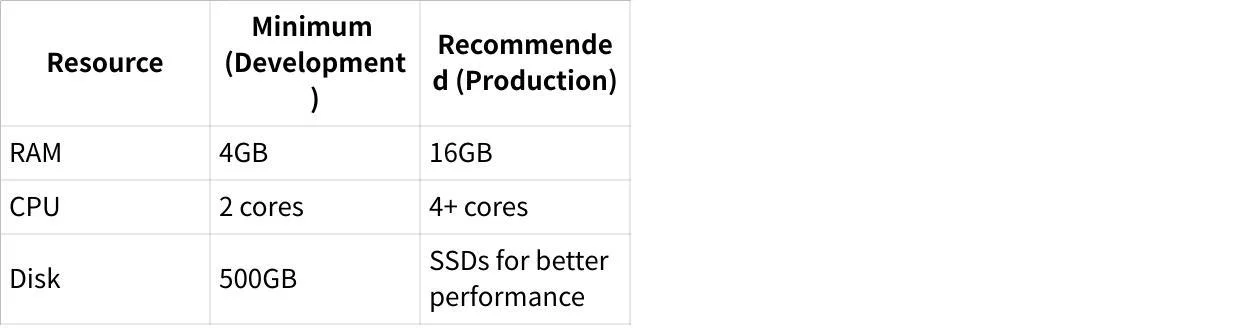
- Resource Management
Ensure your host machine has sufficient resources. For production environments, consider at least 16GB RAM and 4 CPU cores .
- Persistence Configuration
Use Docker volumes for persistent storage to avoid data loss when containers restart:
volumes:
- ./kafka-data:/var/lib/kafka/data- Network Configuration
Configure listeners correctly to enable external access:
KAFKA_ADVERTISED_HOST_NAME: your-host-ip
KAFKA_ADVERTISED_PORT: 9092- Security
Implement security measures such as SSL/TLS encryption and SASL authentication:
KAFKA_LISTENER_SECURITY_PROTOCOL_MAP: PLAINTEXT:PLAINTEXT,SSL:SSL- Monitoring and Logging
volumes:
- ./prometheus.yml:/etc/prometheus/prometheus.yml- Scalability
For multi-broker setups, ensure unique hostnames and ports:
kafka1:
  ...
  hostname: kafka1
  ports:
    - "9092:9092"

kafka2:
  ...
  hostname: kafka2
  ports:
- "9093:9093"5Conclusion
Deploying Kafka on Docker provides a flexible and scalable way to manage messaging systems. By following best practices for resource management, persistence, network configuration, security, and monitoring, you can ensure a robust Kafka setup. For complex environments, consider using Redpanda or Confluent's Kubernetes operator for enhanced performance and automation. Always monitor your Kafka cluster's performance and adjust configurations as needed to maintain optimal throughput and latency.
Still struggling with skyrocketing Kafka bills and the "ops tax" of manual disk management? It's time to stop babysitting your clusters. Try AutoMQ Cloud for Free and experience how diskless architecture slashes costs and automates scaling—no credit card required. See how others made the switch in our case studies or explore the project on GitHub.